MO EOP app - First respondent
General information 
Solution overview
MO EOP service is an information system developed for the state of Missouri (MO) for accessing and managing emergency operations plans (EOPs). The purpose of the EOP is to outline emergency management structure and define actions and roles necessary to provide a coordinated response during an emergency event. The plan provides general guidance for all levels of emergency management and applies best practices to mitigate loss of life or damage to property and reinforce continuity of operations.
Thus, the MO EOP solution is used to facilitate the response in emergency situations, mainly in educational institutions. It provides fast and easy access to procedures and processes created specifically to ensure safety and protection of students and staff. All EOPs account for local specifics and the types of potential hazards. Comprehensive resources are used to proactively inform about correct behavior in emergencies as well as to provide the first respondents (firemen, policemen etc.) with required details allowing to choose the best course of action.
The service works as a combination of web and mobile applications. Users with the First respondent role can access only the mobile app.
This document describes MO EOP mobile app functionality for a First respondent.
Supported configurations
Android: Android OS v.4.1 and above
IPhone: iOS v.10 and above
Getting started 
Downloading the app
MO EOP mobile application is available for download both for Android and iOS devices.
Search for MO EOP in
-
Google Play Store (the app is available only for USA region), or
-
App Store (MO EOP).
Creating MO EOP account
First respondents can get access to MO EOP mobile app only after receiving the invitation. Invitations are created and shared by Super admins.
The invitation to join MO EOP is sent to the user via email.
To register in MO EOP mobile app:
- Open the email received from MO EOP admin and click the link it contains.
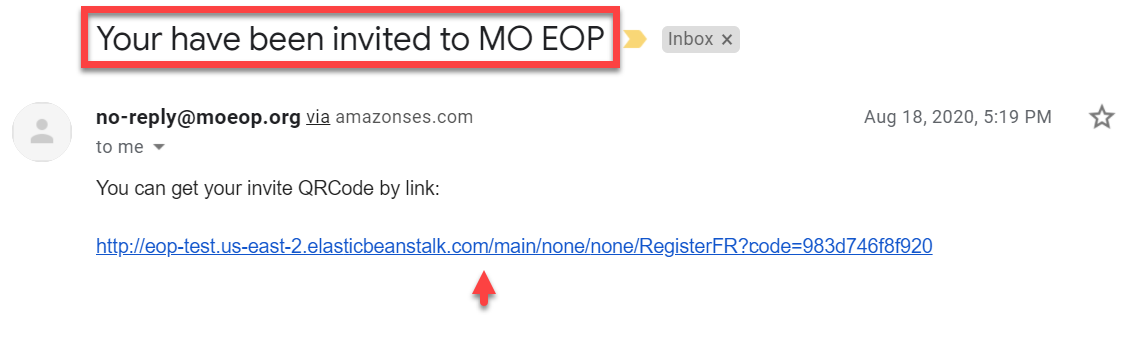
You are navigated to the page with generated QR code.
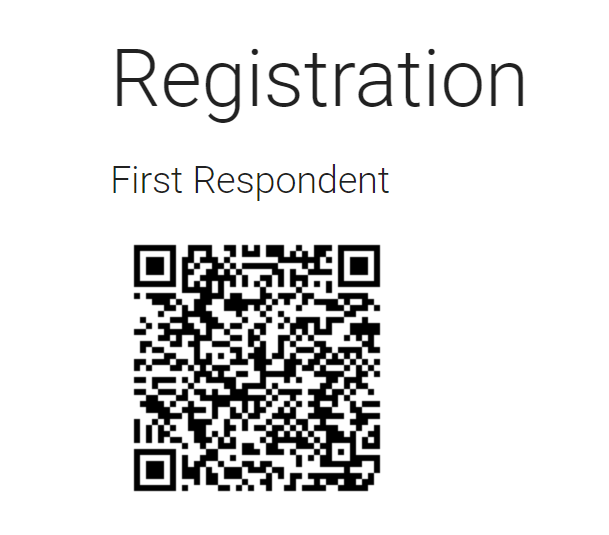
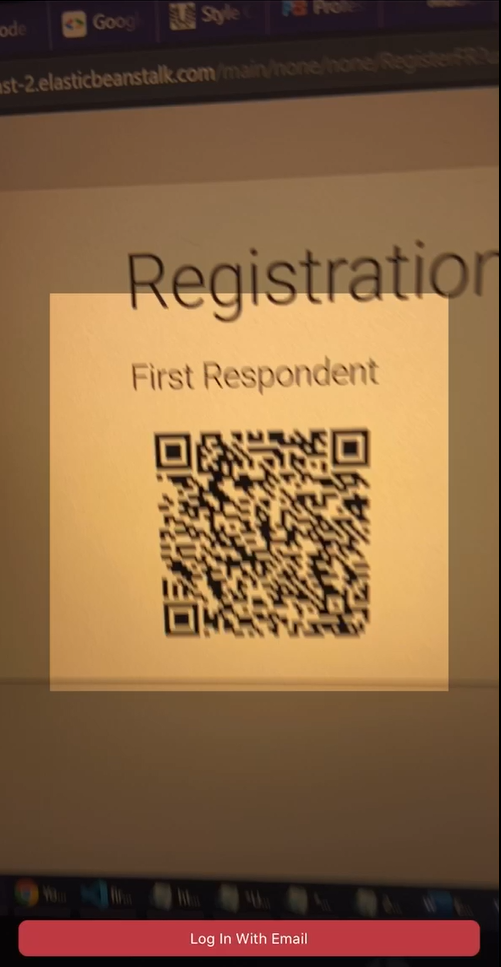
- Open MO EOP app on your mobile device. The QR code scanner opens. Use it to scan the invitation QR code shown above.
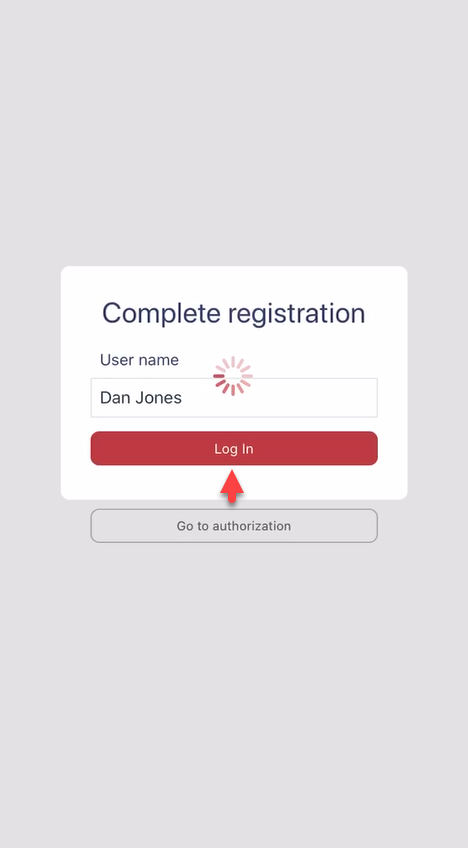
- On the Registration screen, enter your name and tap Log in.
If you want to go back to the QR scanner, you can select Go to authorization.
Your account is created after successful authorization, and you are navigated to the Facility QR code scanner. You can access the menu from the same screen as well by tapping the menu icon in the top left corner of the screen ( ).
).
Logging in and out
As a First respondent, you need to log in only once during authorization. Your credentials are saved and automatically used every time you open the app. This is done to ensure quick and unhindered access to critically important data.
It is assumed that each first respondent needs only one user account. As such, the current implementation does not include the logout option.
Accessing Facility files
After the first-time authorization and login as well as every subsequent time you open the MO EOP app, you are navigated directly to the Facility QR code scanner. Every facility registered in MO EOP system has its own dedicated QR code, which allows you to access all relevant information. Usually, this QR codes are displayed in strategically located boards on the facility premises. So, in any emergency situation, you can quickly access the facility layouts, plans and all other critical information for prompt and efficient response.
Facility QR code can also be shared via any communication channel by MO EOP admins in advance. The First respondent can download and save resources for multiple facilities in the app.
To access Facility resources:
- Simply open the app, or select Scan Facility QR after pressing the menu icon in the top left corner of the screen ().
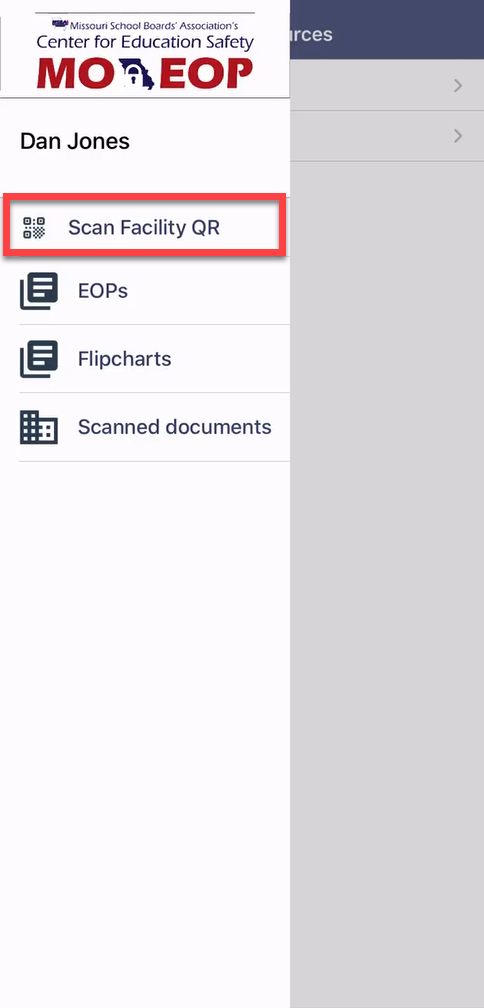
- Scan the facility QR code (either displayed on the board within the facility or shared online).
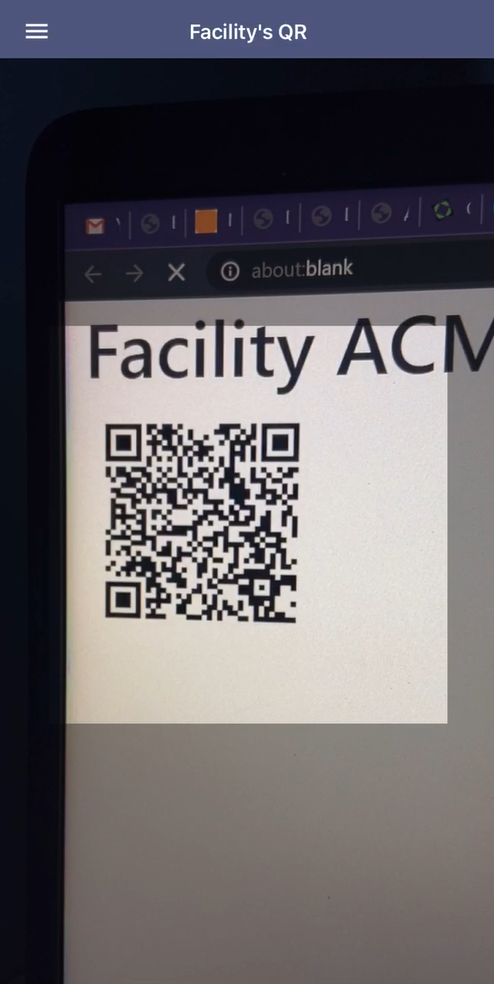
After successful scanning of the QR code, you are navigated to the Scanned documents section and the facility data is downloaded to your app:
-
Facility flip charts are saved in the Flipcharts section
-
Facility resources are saved in the Scanned documents section
Viewing data 
All facility information in MO EOP app is divided into three major parts:
-
EOPs - emergency operation plans outlining the best course of action in critical situations; each facility can have only one EOP
-
Flip charts - information boards briefly describing important actions to be taken in specific types of emergencies; each facility can have as many flip charts as needed
-
Resources - any useful additional data like facility layouts, templates, safety recommendations etc.
After you scan the facility QR code, the facility plans, flip charts and resources are downloaded or updated in your MO EOP app in the corresponding sections:
Each section is updated every time it is opened. But you can also pull to refresh or use the Update button in the top right corner of every section screen  .
.
EOPs
This section contains the EOPs for facilities which QR codes you’ve scanned.
To view EOPs:
-
Open your MO EOP app.
-
Tap the menu icon in the top left corner of the screen (
). -
Select EOPs.
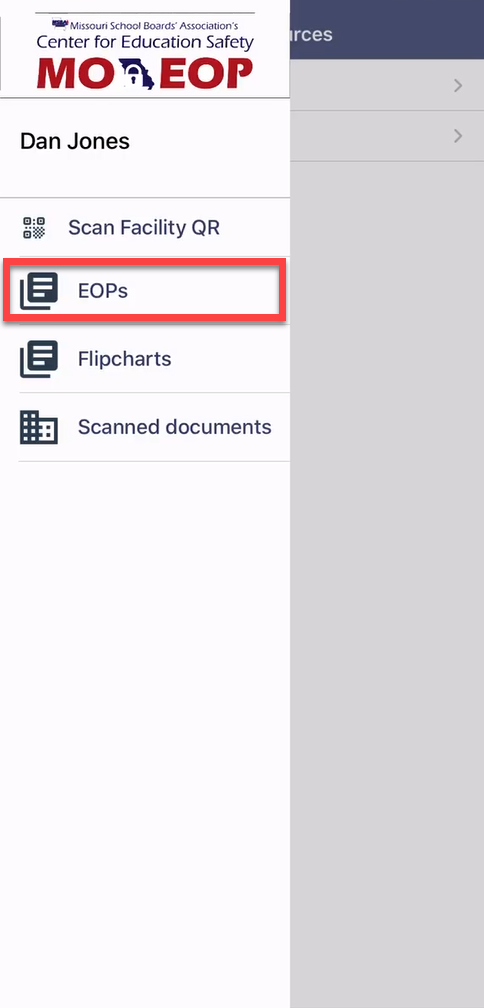
- Tap the required entry to move on to the EOP file.
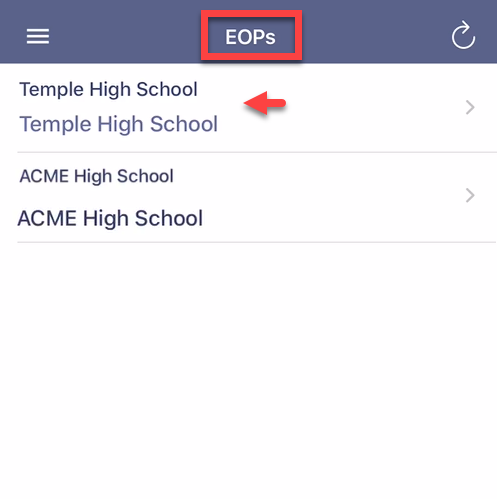
- Tap the file to view it. You can use the pinch in/out gesture to zoom in and out.
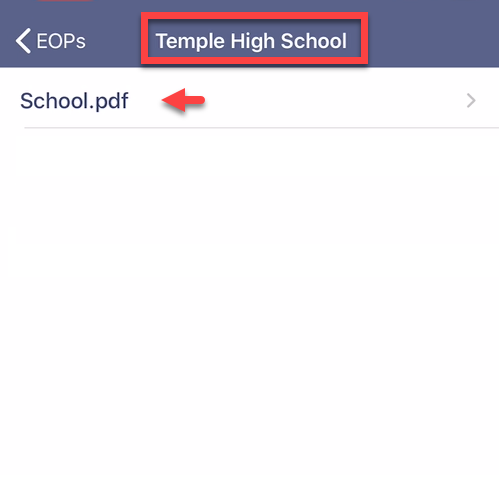
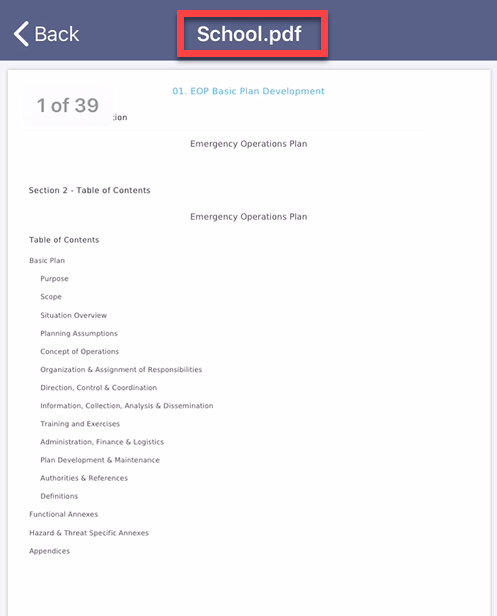
You can use the back arrow  in the top left corner to return to previous screens.
Flipcharts
This section contains the flip charts for facilities which QR codes you’ve scanned.
To view flip charts:
-
Open your MO EOP app.
-
Tap the menu icon in the top left corner of the screen (
). -
Select Flipcharts.
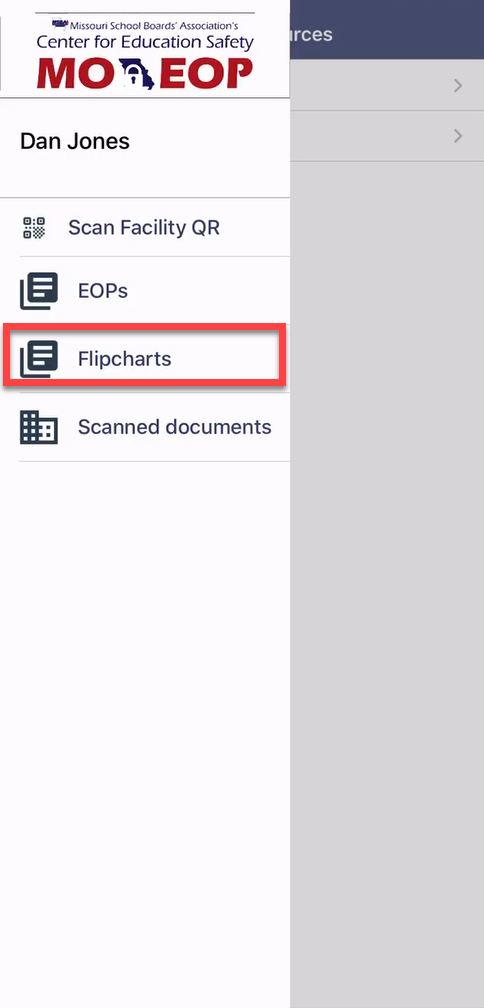
- All flip charts are saved and displayed as separate entries even if they refer to the same facility. If the flip chart details include the hazard type (Fire, Cyber, etc.), it is also displayed on this screen. Tap the required entry to move on to the flip chart file.
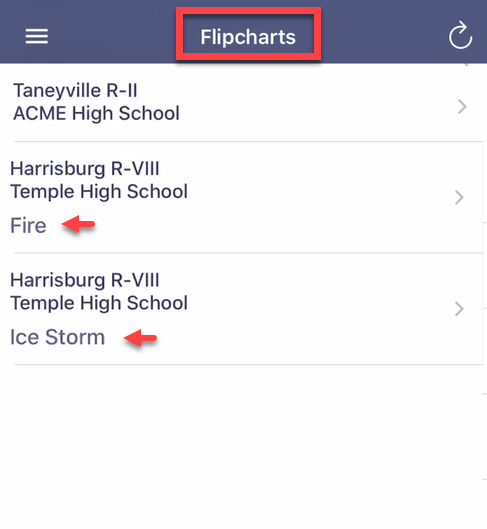
You can use the pinch in/out gesture to zoom in and out.
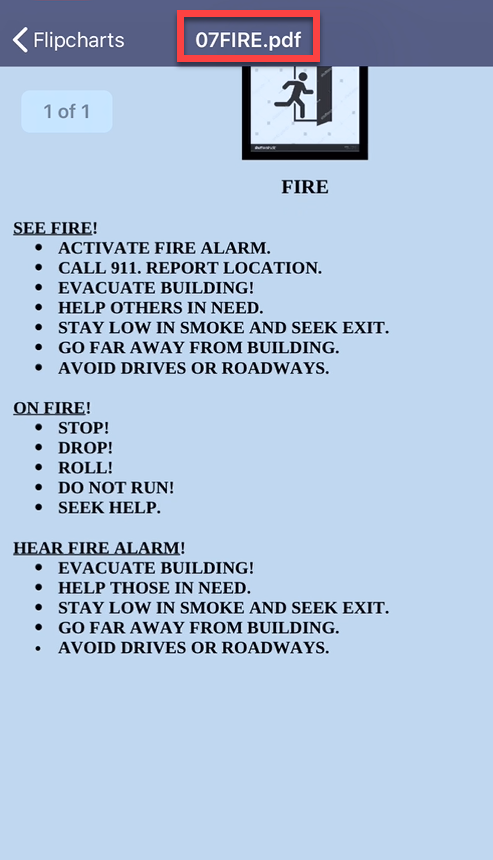
You can use the back arrow in the top left corner to return to previous screens.
Scanned documents
This section contains the resources for facilities which QR codes you’ve scanned.
To view facility resources:
-
Open your MO EOP app.
-
Tap the menu icon in the top left corner of the screen (
). -
Select Scanned documents.
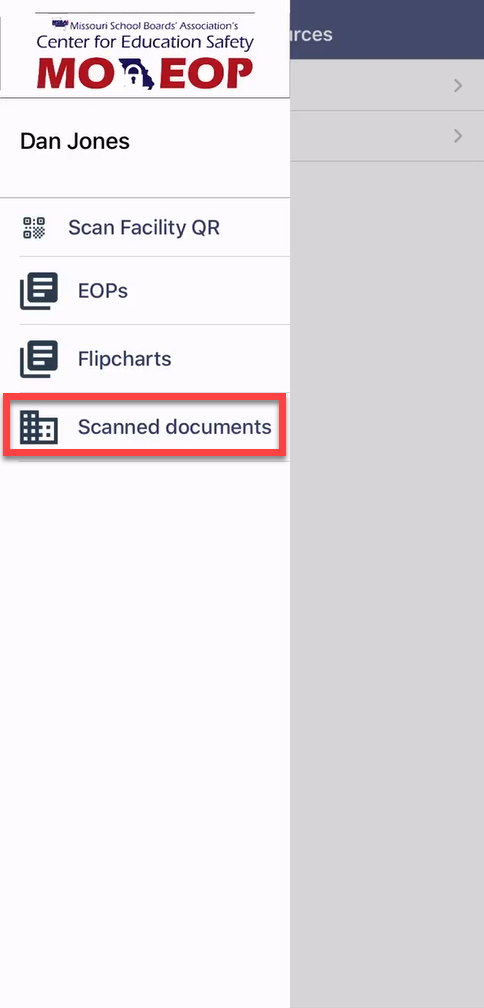
- Tap the required facility to view its resources.
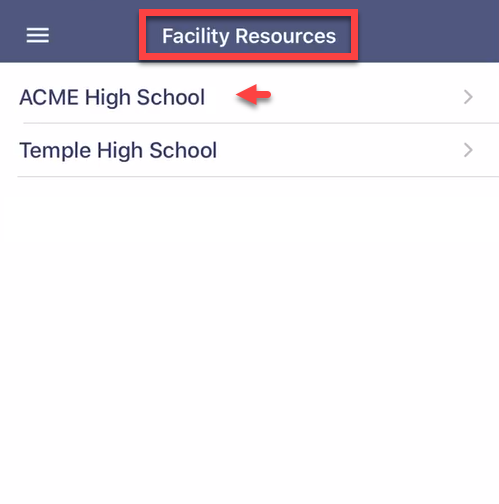
- In the list of facility resources, select the required file. When viewing the file, you can use the pinch in/out gesture to zoom in and out.
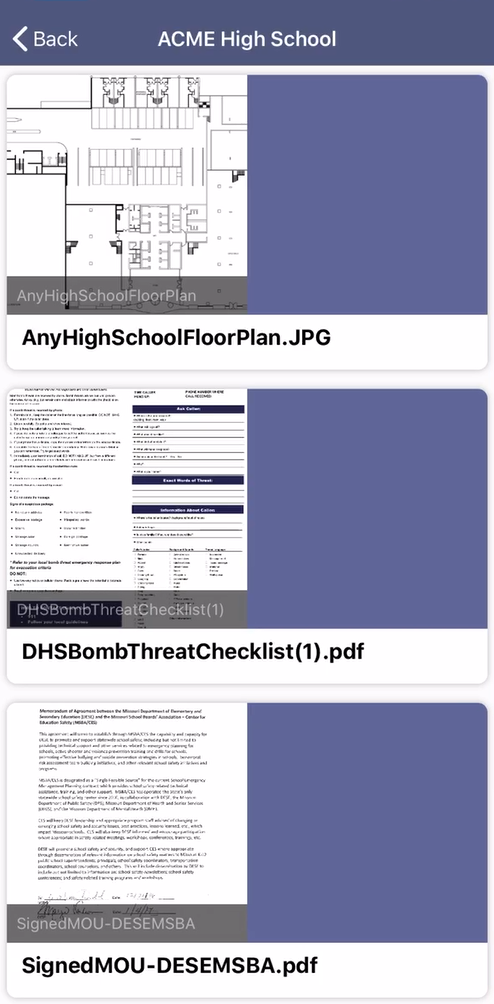
You can use the back arrow in the top left corner to return to previous screens.
Glossary 
EOP
Emergency operations plan. The plan outlines emergency management structure and defines actions and roles necessary to provide a coordinated response during an emergency event. EOP provides general guidance for all levels of emergency management and applies best practices to mitigate loss of life or damage to property and reinforce continuity of operations. Each facility registered in MO EOP can have only one EOP document.
Flip chart
Information board briefly describing important actions to be taken in specific types of emergencies. Such info-boards are usually printed out and placed at strategic locations on the premises to ensure that all concerned people can quickly find appropriate emergency response procedures. Each facility registered in MO EOP can have several flip charts.
Resources
Any useful additional data (besides EOPs and flip charts) can be considered as a resource. It could be any relevant general/district/facility plans or layouts, templates, state-wide, district-wide or local safety recommendations etc.